Continuing my post of
My Top 10 Mobile Apps for 2014, I share my top 10
productivity enhancing mobile apps. In the last year, I found myself using the
smartphone mobile more and more, not requiring me to use my laptop many a
times. These apps allowed me to access my data anywhere and allowed me to be ubiquitous
online.
My Top 10 Productivity Mobile Apps:
- Calendar: While there are many Calendar apps available, I settled for native HTC
Calendar app as my preferred app. The native app allow me to sync multiple
accounts. I synced Microsoft Exchange for my office calendar. You can
additionally sync Google, Outlook.com and Yahoo for your personal calendars. I
found useful the ability to search for location on Google Maps directly from
the calendar invites if the location was entered in the meeting invites. It is also
extremely easy to dial conference call numbers by simply clicking on the
numbers within the invite text. The HTC native app shows me the invite text
while making the call so I don’t have to remember the call dial-in codes while
making the call.
- Email (Mail, Gmail, Outlook): When on the move, you need access to email. Technically you could
use one email client for all your work and personal email accounts. However I
prefer to use different email clients for different email accounts. For my
office Exchange account I use native Mail app. There is an email client for
most services so you can use the ones you prefer. Interestingly as I write this
post, I notice that there is a pre-release version of OWA for Android, which I believe will allow for better
integration with Exchange and Office 365. Currently the ratings and reviews
aren’t flattering but the app looks like a promising one to improve
productivity.
- OneNote: I use OneNote for taking notes. I can create different notebooks
and within that organize my notes in sections, sub-sections and pages. If you
aren't already using a software to organize your notes, I would highly
recommend OneNote. You can sync your notebooks with your Outlook.com account
and then access them on your phone using the OneNote app. You could also try Evernote which is also a popular app, though I haven't used
it much since we use OneNote at work.
- Google Keep: While OneNote is a full featured notes organizer, I just love
Google Keep for its simplicity. Keep is a much lighter note taking app. This
too can be synced on multiple devices so you have your data available on all
devices whenever you need it. A very handy app for quick note taking.
- Task: I tried a few To Do apps but finally settled for native
HTC Tasks app. I can sync multiple accounts and have my tasks with me all the
time. the app has the usual end dates, reminders etc. If you sync to your
office Exchange server, just remember to save your tasks on the server and not
in the local PST while using your laptop.
- Online drives (Microsoft OneDrive, Google Drive, Dropbox): I am a late user of online drives that have been around for a
while now. If you need to access your files wherever you go and on whichever
device you use, you gotta use one of the online drives to store your files.
Based on your preference, you can use Google Drive, Microsoft OneDrive or
Dropbox. All three have their laptop interfaces and mobile apps that allow you
to sync and access files from any device. I use OneDrive since it works better
with Office365.
- Editing files (Microsoft Office Mobile, Polaris Office): While I don’t edit or create documents too
often on my phone, but on the few occasion that I needed to, I was really
thankful that I could actually edit document, spreadsheets and presentations on
my phone. I started using Polaris Office for editing documents since this came
pre-installed with my phone. It is a simple to use app and does the work just
fine. I have since also discovered Microsoft Office Mobile that I prefer to use
because of its better integration with OneDrive and Dropbox. If I need to edit
documents on my online drives, it is easier to use Microsoft Office Mobile. If
you are using Google Drive, you can always use Google Docs.
- Gesture typing / Trace keyboard: Not really an app but a feature on
Android phones is Gesture typing (on most Android phones), or Trace Keyboard
(on HTC). This allows you to type by simply tracing your fingers over the
keyboard letters without lifting your finger. This is a great feature to start
typing faster and I would recommend you get used to this feature. It is easier
to use this feature if you are comfortable with the QWERTY keyboard layout. I
am not sure if the iPhone has this built in feature, but I discovered Swype
app on iTunes that allows you to type without lifting your finger.
- Conference Caller: If you are on conference call bridges a lot,
then you need to give Conference Caller a try. Conference Caller works like a
general phone book for your conference call meeting details. Each phone book
item consists of name, conference code and (optional) pin. I stored details of
my various conference call bridge numbers in the app. It makes dialing in to a
conference call bridge a one touch affair since the app dials your conference
ID and pin numbers after dialing your conference call bridge number. You may
need to experiment with settings for your conference call service but once you
manage to do that, this makes getting on to a conference call so much easier.
- Pocket: Online bookmarking has been around for a while now,
even though it no longer seems to be very popular now. However I found Pocket
really handy. While browsing online either on the laptop or the phone, I can
send/share any link to Pocket. The app has a neat interface to access my saved
links. You can tag your saved links for better retrieval.
The year 2014 was the year when I feel I actually started using my smartphone smartly. I could get much of my work done on my mobile, many a times not requiring me to switch on my laptop. In the new few posts I will share with you my top apps for networking, productivity, music, photography, chats, reading/news and games. Since I use an Android phone, the links below are Google Play links. I am sure you can get most of these apps for iPhone and perhaps Windows Phone.
My Top 10 Mobile Apps that I used and liked most in 2014 are:
- CamCard Business Card Reader: I collect a lot of business cards as part of my job. It is hard to manage these physical cards even though I have a nice card file. After trying out a few card scanning apps, I have narrowed down to CamCard Business Card Reader. I can just take a photograph of the business card and the app will scan and store the info in different fields. I can save the contact details in my Google account and they will then automatically appear in my phone book. The free version allows you to scan only 5 cards in a day and up to 200 cards.
- Merriam-Webster Dictionary: What use is a smart phone if it doesn’t have a dictionary? I use the Merriam-Webster Dictionary app to quickly browse words and even hear their pronunciation. This app has been really handy for me and my savior when my kids ask me the meaning of any word.
- Google Maps has become my most favorite companion on my drives every day. Almost every time I get into the car, I switch on the GPS on my phone and feed in the destination in to Google Maps. I use this primarily to check the traffic and it gives a fairly accurate time to destination. I have found the ETA is very accurate for shorter distances and reasonably accurate for longer distances, given then unpredictability of Delhi traffic. The Greens, Yellows and Reds representing the traffic are quite accurate. At times I have used it to follow the shortest route to my destination but I wouldn’t recommend it for the weak hearted. It has taken me through the smallest of the lanes in Delhi that I didn’t even know existed.
- Waze Social GPS Maps & Traffic is another cool navigation app that I used during the year. This is an interactive and social navigation app. You can see other drivers online, you can see other drivers sharing hazards on the road (like an accident, or construction on the road). You can connect with friends, share your destination, and see each other’s ETA. The few drawbacks I felt it has is that the traffic situation is not as accurate as Google Maps, the connection to the server seems to keep breaking and there aren’t enough other people using this app in India to really get the benefit of social driving.
- Delhi Traffic Police app is really useful to get alerts about Delhi traffic. You could get the same alerts on Twitter or Facebook, but it is useful having an app just for these alerts. I found these updates quite current and extremely useful.
- HTC Sense TV app is really useful if you always have trouble finding your TV or Satellite set top box remote. Since I use HTC phone, I use the HTC Sense TV app, but you should check out other similar TV remote apps. I can set up the phone as the remote for TV, Set Top Box, and the Home Theatre system. It configures well with Indian DTH providers and once configured, it provides complete program guide too.
- Truecaller Called ID & Block: The DND directory hasn’t been very helpful in stopping unwanted calls and SMSs. I have been relying on app to help me get rid of unwanted spam calls and SMSs. The app not just identifies the called, it even tells how many other people have blocked that number. It also helps identify the caller even if you don’t have the number stored. Don’t expect it to work on ALL numbers, it is not an official telephone directory. It works on the basis of reading and uploading your address book (with due permission from you, thankfully).
- Sync.ME also propagates itself as a Caller ID and Block app. However I have found this app most useful to link contacts to Facebook or LinkedIn accounts. You can sync your accounts with Facebook and/or LinkedIn and it will show you the latest picture and other info about your contact.
- Unit Converter: This is fantastic app to convert almost any unit of measure, even currency conversion. The app gives you a long list of units that you can convert. You can add to favorites the most used ones to access these quickly.
- Flightradar24 is a cool app just to play around with, and a really useful app if you are going to pick up someone at the airport. You can see planes around the world move in real-time on a detailed map. In the paid version of this app, you get detailed info about each flight, including ETA. The cockpit view is a simulated view and it quite cool initially. After the initially euphoria, you don’t find it much useful. You can even point the phone above the horizon to see planes around you, but this is also just a pizazz feature rather than anything really useful.
Also see:
•
My Top 10 Productivity Mobile Apps for 2014
Look out for my other soon-to-be-published lists:
•
My Top 5 Social Networking Mobile Apps
•
My Top 5 Reading and News Mobile Apps
•
My Top 5 Music Mobile Apps
•
My Top 5 Chat Mobile Apps
•
My Top 10 Camera and Photos Mobile Apps
•
My Top 5 Mobile Game Apps
Image courtesy: https://www.flickr.com/photos/wolfgangkuhnle/4163909778/
It’s been more than 6 months since I
last posted my top 10 tools for learning. I thank
Jane Hart for making me think to update the list for Centre for Learning & Performance Technologies’
compilation of top 10 tools for learning of as many as 184 learning professionals. There are some changes since I last wrote, though many of the tools and techniques still remain in my top 10 list.
Here are my top 10 tools for learning in Aug 2008.
- Search engines – though Google is still my most used generic search engine, I have discovered and used few other more specific search engines. I frequently use Flickr and LinkedIn search add ons installed on my Firefox. I also use Summize (which has since been acquired by Twitter) to search Twitter tweets.
- Blogging – blogging continues to help me reflect on my thoughts and crystallize my learning. I still use Blogger for my personal blog and have moved to hosted Wordpress for my team blog.
- Blog Feeds – I read blogs via RSS feeds. Have been on Google Reader so far and recently discovered Feedly. Feedly integrates very well with Google Reader and presents a very nice magazine-like interface. I just love reading my RSS feeds on Feedly now.
- Social Networks – I use Facebook as my main social networking environment and it’s been great. It has been a great source for getting help from my social network. I am also beginning to utilize LinkedIn Answer, though the usage is still low.
- Social Bookmarking – I had del.icio.us on my list the last time, however I hardly use visit it to view other people’s bookmarks. What have really helped is the bookmarks I receive in various feeds (RSS or Facebook feeds) of my network. So social bookmarking is still on my list but the usage is different now.
- Right click-Open in New Window/Tab – Still on my list. So you may argue this is not exactly a learning tool. But I find hyperlinks very distracting and if I click on a hyperlink I lose the flow of what I am reading. So I always right click and open the hyperlink in a new tab or window. This enables me to continue reading and if I do view a hyperlink, this allows me to return to my original document easily.
- Web-enabled mobile phone (iPhone) – Continues to be on my list.
- In-sighting and de-layering – A technique I learned in one of the leadership workshops. Now in every interaction I listen more carefully and ask more questions, with an attempt to get an insight into the subject of our discussion.
- Online conferencing – continues to be on my list. We now use Office Communication Server (OCS) at work and that is used a lot more frequently now than other paid services.
- Wikipedia – Continues on my list. Great place to find almost anything here.
Centre for Learning & Performance Technologies’s site is a good repository of various learning tools. Jane Hart invites contributions to identify top 10 learning tools that the learning professionals use. These are not elearning development tools but tools that allow us to learn ourselves. Jane’s summary of top 100 tools for learning from her 2007 survey makes an interesting reading.
Here are my top 10 tools for learning. Actually some of these might just be techniques. While I have listed some specific tools, in many cases, it is the technique that I found important. I have found very little difference in many of these tools and usually my favorites are the ones that I starting using first.
- Google – an astonishingly simple interface, this search engine is the place where I go first when I am trying to know more about something.
- Blogging – not a particular blogging tool, but just the fact of blogging has helped me know more and forced me to learn. It is a bit like teaching is the best method of learning. I use Blogger for my blog.
- Blogs – I find that I am reading and learning more from blogs than from other sources like magazines (online or paper), social networking sites, or company/product websites.
- Google Reader – RSS actually. I use Google Reader manage my feeds. RSS has really helped me stay up to date with new articles of various blogs and sites that I track. I really like this tool.
- del.icio.us – I work on three computers (if I include my mobile phone) and del.icio.us really makes it easy for me to track my bookmarks. But more importantly, I learn from the community to see what others are reading.
- Right click-Open in New Window/Tab – Okay, so you may argue this is not exactly a learning tool, but I find hyperlinks very distracting and if I click on a hyperlink I lose the flow of what I am reading. So I always right click and open the hyperlink in a new tab or window. This enables me to continue reading and if I do view a hyperlink, this allows me to return to my original document easily.
- Web-enabled mobile phone – I resisted getting a GPRS phone for a very long time for the fear of being chased by emails all the time (is there a phobia name for that, I wonder). But ever since I got my iPhone I have been absolutely hooked to its full browser Safari. This allows me to learn when I am not the move anywhere. Given our travel times now a days, I would recommend people getting a GPRS enabled phone with a browser. And the company deal from my service provider at Rs. 99 ($2.50) per month for unlimited usage is an absolute steal.
- Online conferencing (WebEx, Adobe Acrobat Connect) – I don’t have any particular software that is my favorite. WebEx was the most used online conferencing but I am seeing the usage of Adobe Connect increasing. Online conferencing for meetings and training is a great tool for learning and collaboration.
- Slideshare – In my view, the YouTube of presentations. This is a great social networking site for sharing presentations. You can access some really interesting presentations here.
- Wikipedia – Great place to find almost anything here.
When I went looking for a new computer for my son, I chanced upon the new iStore in Noida. As I played with the iMac, I instantly fell in love with it. The effects were too cool and it seemed like a computer built for true home computing. The fact that the design of the machine itself was also very s**y helped me make my decision to buy the iMac. It was reasonably more expensive than an equivalent PC but I think it was worth it. My son wasn’t too impressed though. The games he was used to playing didn’t run on the new Mac. This was of course an opportunity to get new games. Many of the games came with really cool graphics. The overall experience was close to the gaming station. Of course, it made my wallet lighter quite a bit.
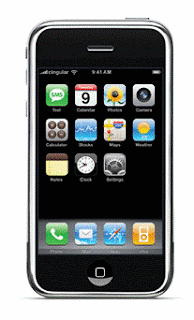
When I saw the video preview of iPhone I was hooked. I salivated at the features presented by Mr. Jobs in the video. This will be my next phone I thought. So finally when I managed to get hold of an iPhone for myself, I was a little boy with a new toy. I was lucky to open a firmware version 1.1.1 of iPhone. This made it easier to unlock it and use it with my existing sim card. The next two days went in playing with my new toy, upsetting my family for not giving them enough time over the weekend.
After the initial euphoria of the new toy, I finally managed to use the "phone" of the iPhone, and I instantly missed my old Nokia. To start with, I couldn’t access the phone numbers and SMSs stored on my old sim card. iPhone doesn’t recognize sim card as a device on which phone numbers and messages stored. So before upgrading to iPhone figure out a way to get your phone numbers in Microsoft Outlook Contacts.
Finally after a weekend, I started on the Monday morning drive to office. The earphones are convenient contraption for hands-free driving (which unfortunately is as illegal in Delhi as using the phone itself while driving). Anyway the earphone on iPhone are very good for music but not for hands-free usage while driving. The earphones do not have any button to take a call or disconnect a call. So if you are using iPhone while driving, you still need to do things on the phone to take a call. I recommend getting a Bluetooth earpiece for hands-free on iPhone.
You will be absolutely enthralled by the finger scrolling on iPhone. It is undoubtedly one of the coolest features on iPhone. But if you want to find a contact in your contact list, you can’t just simply type the name for quick search. You still need to scroll through the list to find the contact, which is a pleasant experience initially but I miss the ability to type the first few letters of the contact name to quickly get to what I am looking for.
iPhone can’t separate the country code/city code for incoming numbers. So when I got a call, my iPhone displayed the number instead of the name, since the phone number stored in the phone was without the country/city code. I of course failed to recognize the number. The one thing that mobile phones and new technology has done is that it has reduced my ability to remember numbers. (I beginning to feel it is critical that kids get their math education without calculators.) So when the person on the other side of the line reminded me gently that he was my boss calling, I had to quickly recover from my lack of recognition. To ensure that your iPhone displays names stored in the contacts list, store your numbers including country code and city code, e.g. +91-98… or +91-11-234… etc.
iPhone also can’t send business card, or at least I haven’t figured out a way of doing this. So I am not sure how I can simply forward a phone number stored in my contacts list.
Of course, there is no end to the cool features. The SMS stored as conversation is really nice. You can see all the messages together with history. The finger scrolling feature has all the s*x appeal. The photo scrolling, zoom in and out of photos, websites etc. is fantastic. Overall the iPhone is too cool. Notwithstanding the fact that there is much improvement required in the actual "phone" of iPhone, you are sure to turn heads when you flaunt it.
PS: In case you are wondering why am I being such a prude not writing s**y etc. like DD network, it is because I am not sure what AdSense will do with the contextual advts that it shows on this site. So I am playing it safe for now till I figure these things out more.
PS PS: Do read the comments for more info. Please rate this page by clicking on the stars below. Thanks.


