Continuing my post of
My Top 10 Mobile Apps for 2014, I share my top 10
productivity enhancing mobile apps. In the last year, I found myself using the
smartphone mobile more and more, not requiring me to use my laptop many a
times. These apps allowed me to access my data anywhere and allowed me to be ubiquitous
online.
My Top 10 Productivity Mobile Apps:
- Calendar: While there are many Calendar apps available, I settled for native HTC
Calendar app as my preferred app. The native app allow me to sync multiple
accounts. I synced Microsoft Exchange for my office calendar. You can
additionally sync Google, Outlook.com and Yahoo for your personal calendars. I
found useful the ability to search for location on Google Maps directly from
the calendar invites if the location was entered in the meeting invites. It is also
extremely easy to dial conference call numbers by simply clicking on the
numbers within the invite text. The HTC native app shows me the invite text
while making the call so I don’t have to remember the call dial-in codes while
making the call.
- Email (Mail, Gmail, Outlook): When on the move, you need access to email. Technically you could
use one email client for all your work and personal email accounts. However I
prefer to use different email clients for different email accounts. For my
office Exchange account I use native Mail app. There is an email client for
most services so you can use the ones you prefer. Interestingly as I write this
post, I notice that there is a pre-release version of OWA for Android, which I believe will allow for better
integration with Exchange and Office 365. Currently the ratings and reviews
aren’t flattering but the app looks like a promising one to improve
productivity.
- OneNote: I use OneNote for taking notes. I can create different notebooks
and within that organize my notes in sections, sub-sections and pages. If you
aren't already using a software to organize your notes, I would highly
recommend OneNote. You can sync your notebooks with your Outlook.com account
and then access them on your phone using the OneNote app. You could also try Evernote which is also a popular app, though I haven't used
it much since we use OneNote at work.
- Google Keep: While OneNote is a full featured notes organizer, I just love
Google Keep for its simplicity. Keep is a much lighter note taking app. This
too can be synced on multiple devices so you have your data available on all
devices whenever you need it. A very handy app for quick note taking.
- Task: I tried a few To Do apps but finally settled for native
HTC Tasks app. I can sync multiple accounts and have my tasks with me all the
time. the app has the usual end dates, reminders etc. If you sync to your
office Exchange server, just remember to save your tasks on the server and not
in the local PST while using your laptop.
- Online drives (Microsoft OneDrive, Google Drive, Dropbox): I am a late user of online drives that have been around for a
while now. If you need to access your files wherever you go and on whichever
device you use, you gotta use one of the online drives to store your files.
Based on your preference, you can use Google Drive, Microsoft OneDrive or
Dropbox. All three have their laptop interfaces and mobile apps that allow you
to sync and access files from any device. I use OneDrive since it works better
with Office365.
- Editing files (Microsoft Office Mobile, Polaris Office): While I don’t edit or create documents too
often on my phone, but on the few occasion that I needed to, I was really
thankful that I could actually edit document, spreadsheets and presentations on
my phone. I started using Polaris Office for editing documents since this came
pre-installed with my phone. It is a simple to use app and does the work just
fine. I have since also discovered Microsoft Office Mobile that I prefer to use
because of its better integration with OneDrive and Dropbox. If I need to edit
documents on my online drives, it is easier to use Microsoft Office Mobile. If
you are using Google Drive, you can always use Google Docs.
- Gesture typing / Trace keyboard: Not really an app but a feature on
Android phones is Gesture typing (on most Android phones), or Trace Keyboard
(on HTC). This allows you to type by simply tracing your fingers over the
keyboard letters without lifting your finger. This is a great feature to start
typing faster and I would recommend you get used to this feature. It is easier
to use this feature if you are comfortable with the QWERTY keyboard layout. I
am not sure if the iPhone has this built in feature, but I discovered Swype
app on iTunes that allows you to type without lifting your finger.
- Conference Caller: If you are on conference call bridges a lot,
then you need to give Conference Caller a try. Conference Caller works like a
general phone book for your conference call meeting details. Each phone book
item consists of name, conference code and (optional) pin. I stored details of
my various conference call bridge numbers in the app. It makes dialing in to a
conference call bridge a one touch affair since the app dials your conference
ID and pin numbers after dialing your conference call bridge number. You may
need to experiment with settings for your conference call service but once you
manage to do that, this makes getting on to a conference call so much easier.
- Pocket: Online bookmarking has been around for a while now,
even though it no longer seems to be very popular now. However I found Pocket
really handy. While browsing online either on the laptop or the phone, I can
send/share any link to Pocket. The app has a neat interface to access my saved
links. You can tag your saved links for better retrieval.
The year 2014 was the year when I feel I actually started using my smartphone smartly. I could get much of my work done on my mobile, many a times not requiring me to switch on my laptop. In the new few posts I will share with you my top apps for networking, productivity, music, photography, chats, reading/news and games. Since I use an Android phone, the links below are Google Play links. I am sure you can get most of these apps for iPhone and perhaps Windows Phone.
My Top 10 Mobile Apps that I used and liked most in 2014 are:
- CamCard Business Card Reader: I collect a lot of business cards as part of my job. It is hard to manage these physical cards even though I have a nice card file. After trying out a few card scanning apps, I have narrowed down to CamCard Business Card Reader. I can just take a photograph of the business card and the app will scan and store the info in different fields. I can save the contact details in my Google account and they will then automatically appear in my phone book. The free version allows you to scan only 5 cards in a day and up to 200 cards.
- Merriam-Webster Dictionary: What use is a smart phone if it doesn’t have a dictionary? I use the Merriam-Webster Dictionary app to quickly browse words and even hear their pronunciation. This app has been really handy for me and my savior when my kids ask me the meaning of any word.
- Google Maps has become my most favorite companion on my drives every day. Almost every time I get into the car, I switch on the GPS on my phone and feed in the destination in to Google Maps. I use this primarily to check the traffic and it gives a fairly accurate time to destination. I have found the ETA is very accurate for shorter distances and reasonably accurate for longer distances, given then unpredictability of Delhi traffic. The Greens, Yellows and Reds representing the traffic are quite accurate. At times I have used it to follow the shortest route to my destination but I wouldn’t recommend it for the weak hearted. It has taken me through the smallest of the lanes in Delhi that I didn’t even know existed.
- Waze Social GPS Maps & Traffic is another cool navigation app that I used during the year. This is an interactive and social navigation app. You can see other drivers online, you can see other drivers sharing hazards on the road (like an accident, or construction on the road). You can connect with friends, share your destination, and see each other’s ETA. The few drawbacks I felt it has is that the traffic situation is not as accurate as Google Maps, the connection to the server seems to keep breaking and there aren’t enough other people using this app in India to really get the benefit of social driving.
- Delhi Traffic Police app is really useful to get alerts about Delhi traffic. You could get the same alerts on Twitter or Facebook, but it is useful having an app just for these alerts. I found these updates quite current and extremely useful.
- HTC Sense TV app is really useful if you always have trouble finding your TV or Satellite set top box remote. Since I use HTC phone, I use the HTC Sense TV app, but you should check out other similar TV remote apps. I can set up the phone as the remote for TV, Set Top Box, and the Home Theatre system. It configures well with Indian DTH providers and once configured, it provides complete program guide too.
- Truecaller Called ID & Block: The DND directory hasn’t been very helpful in stopping unwanted calls and SMSs. I have been relying on app to help me get rid of unwanted spam calls and SMSs. The app not just identifies the called, it even tells how many other people have blocked that number. It also helps identify the caller even if you don’t have the number stored. Don’t expect it to work on ALL numbers, it is not an official telephone directory. It works on the basis of reading and uploading your address book (with due permission from you, thankfully).
- Sync.ME also propagates itself as a Caller ID and Block app. However I have found this app most useful to link contacts to Facebook or LinkedIn accounts. You can sync your accounts with Facebook and/or LinkedIn and it will show you the latest picture and other info about your contact.
- Unit Converter: This is fantastic app to convert almost any unit of measure, even currency conversion. The app gives you a long list of units that you can convert. You can add to favorites the most used ones to access these quickly.
- Flightradar24 is a cool app just to play around with, and a really useful app if you are going to pick up someone at the airport. You can see planes around the world move in real-time on a detailed map. In the paid version of this app, you get detailed info about each flight, including ETA. The cockpit view is a simulated view and it quite cool initially. After the initially euphoria, you don’t find it much useful. You can even point the phone above the horizon to see planes around you, but this is also just a pizazz feature rather than anything really useful.
Also see:
•
My Top 10 Productivity Mobile Apps for 2014
Look out for my other soon-to-be-published lists:
•
My Top 5 Social Networking Mobile Apps
•
My Top 5 Reading and News Mobile Apps
•
My Top 5 Music Mobile Apps
•
My Top 5 Chat Mobile Apps
•
My Top 10 Camera and Photos Mobile Apps
•
My Top 5 Mobile Game Apps
Image courtesy: https://www.flickr.com/photos/wolfgangkuhnle/4163909778/
I got a Google Wave invite and didn’t really know what to do. I was quite lost when I first logged on. It took me about a week before I actually started exploring and figuring it out. I am still at it. Here’s what you can do when you get a Google Wave invite.
- Add the person who sent you the invite in your Contact list.
- Start a wave thanking the person who sent the invite. This is getting your feet wet.
- I think the Contact list shows your Google contacts who already have Wave account. I am assuming this since Wave showed me only my limited contacts. I could be wrong.
- Start a wave (more like a conversation really) with someone you know.
- You may be added to other waves by your contacts. Join the conversation with them.
- And when you get to invite others to Wave, send out invites to people who will join you in the conversation.
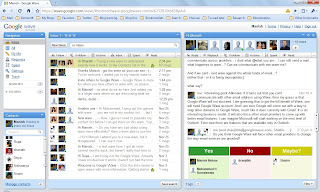
I started a wave to discuss what Google Wave is all about. I have added folks to the same wave as they I sent out new invites to more people I knew. My first impressions about Google Wave:
- Wave seems an enhanced collaborative tool. It’s got elements of discussion forum, IM, Twitter, email all in one.
- Not for the weak hearted. Takes some time get used to. And you have to actually start using it to understand more about how it functions.
- Waves with many people can get long and confusing. Sure, you can play back every step how the wave was created, but I think most will just read the wave top down. And if the wave is long then it is a lot of reading.
- There’s no ‘email alert’ if you add others to a wave, or when you are added by others to a wave. I felt some people were ignoring me when didn’t respond to my waves, when it was just that they didn’t know a new wave was started with them included in it. You need to visit the Google Wave site to see what’s new. I think the intent is that it will eventually replace email (perhaps, who knows). And you don’t get an email alert when receive an email… duh! I was however expecting an email alert on any wave activity, like the one I get when there’s Facebook activity on my account.
- You can see what others are typing as they type. Looks cool initially but gets irritating after a while. It is very hard to focus on screen when characters are moving around. And you can see exactly what mistakes the other person is making and how they are correcting them. Very disconcerting!
- There’s no title or subject assigned to a wave. A little hard to keep track of what the wave is about based on the preview of the fist message in the wave.
- When a wave has been updated with new messages, it is highlighted (shows up as Bold). You need to navigate the whole wave to figure out what’s new on that wave. Doesn’t directly show what’s new in the wave.
- You can’t delete waves. You can only Unfollow them. Not sure what happens if everyone unfollows a wave.
- Apparently there are many command line actions that do many things on Google Wave. I didn’t bother trying them out. Hopefully Wave will be released with more WYSIWYG commands. We’ve been too spoilt to bother with command line actions.
An interesting conversation on our wave:
Abinava:
I have wondered about one thing though - one of the features of eMail is its ability to communicate across providers... I don’t what @what you are... I can still send a mail... what happens to wave...? Can we communicate with non-wave-ers?
And if we can’t - isn’t wave against the whole funda of email...?
(either that - or it is being monopolistic)
Me:
Interesting point. If it turns out that you can't communicate with other email address using Wave, then my guess is that Google Wave will not succeed. I am guessing that to get the full benefit of Wave, one will need Google Wave account. And I am sure Google will come out with a way to map other domains to Google Wave, much like it does currently with Gmail. It is an interesting business model. It will also force other email providers to come up with better email features. I can imagine Microsoft will start working on the next level of Outlook. Even now there are features that are available only in Outlook.
Me:
Poll - Do you think Google Wave will force other email providers to change the way email services are provided?
Yes – 4 | No – 1 | Maybe – 1
Shishir:
Google Wave may not be able to force a change in email services. However, it would definitely affect instant messaging and collaboration.
So there you are… still early days for Google Wave to say which way it will go.


